2023-11-04
美化你的Terminal和Shell
Windows Terminal
大部分人拿到电脑的第一件事,基本上就是在图形界面上点来点去,我却很留恋DOS机上那种人和冰冷机器通过一条条指令交互的感觉。在Microsoft推出了全新的Windows Terminal后,我再也按捺不住这种冲动,开始“重用”这个小黑框。
背景美化
2025年8月19日更新:现在可以直接在终端图形化设置中调整
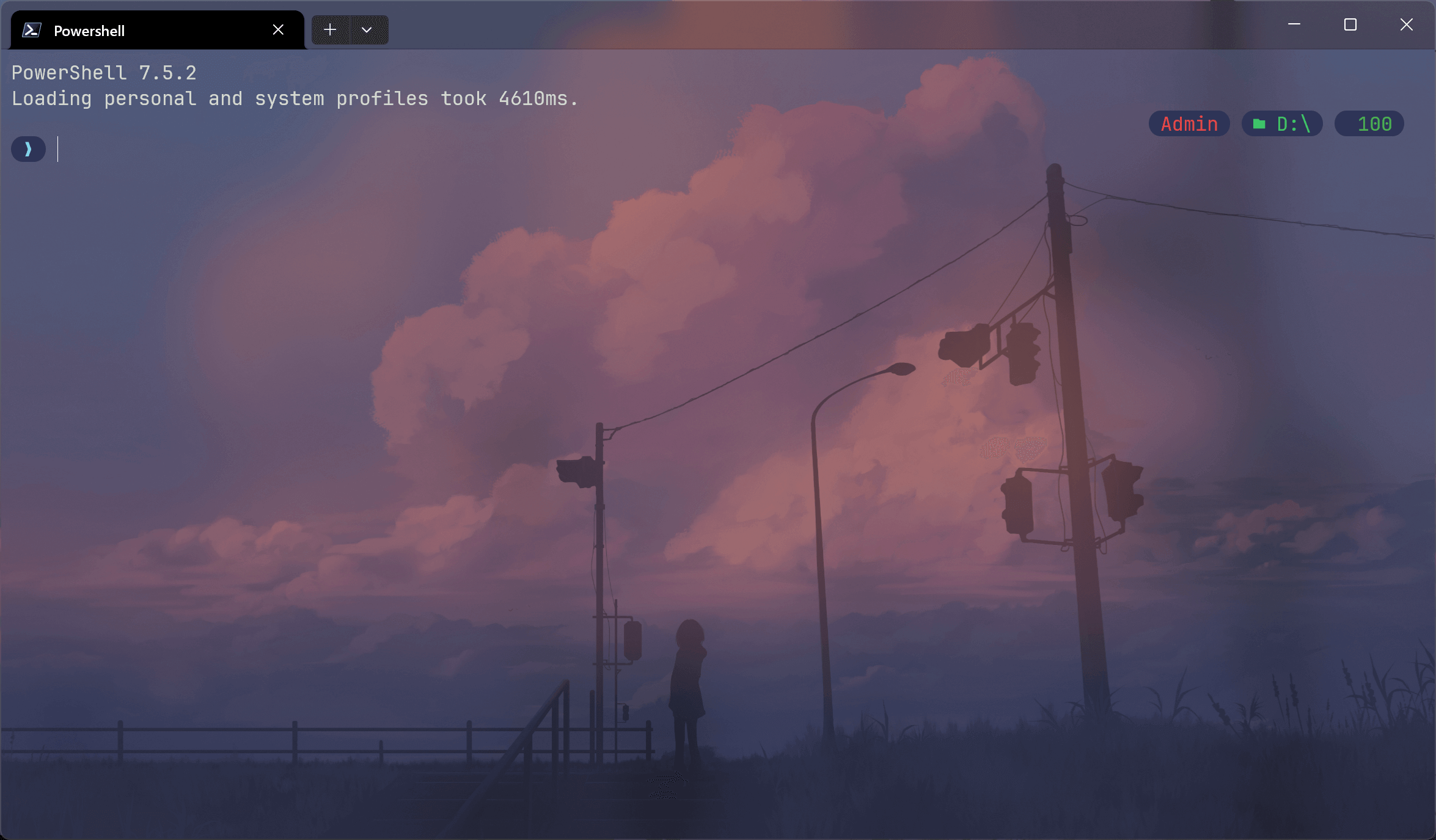
通过设置打开settings.json,找到profiles下的defaults,我们先开启亚克力效果。使用useAcrylic和acrylicOpacity,接着使用backgroundImage和backgroundImageOpacity设置背景图片。
以下是我目前使用的配置文件:
json78 lines
{
    "$help": "https://aka.ms/terminal-documentation",
    "$schema": "https://aka.ms/terminal-profiles-schema",
    "actions": [],
    "copyFormatting": "none",
    "copyOnSelect": false,
    "defaultProfile": "{c246743b-256c-5aba-85df-0cbc23225ecb}",
    "keybindings":
    [
        {
            "id": "Terminal.CopyToClipboard",
            "keys": "ctrl+c"
        },
        {
            "id": "Terminal.PasteFromClipboard",
            "keys": "ctrl+v"
        },
        {
            "id": "Terminal.DuplicatePaneAuto",
            "keys": "alt+shift+d"
        }
    ],
    "newTabMenu":
    [
        {
            "type": "remainingProfiles"
        }
    ],
    "profiles":
    {
        "defaults":
        {
            "backgroundImage": "desktopWallpaper",
            "backgroundImageOpacity": 0.29,
            "colorScheme": "Vintage",
            "font":
            {
                "face": "FiraCode Nerd Font"
            },
            "opacity": 0,
            "useAcrylic": true,
        },
        "list":
        [
            {
                "backgroundImage": "desktopWallpaper",
                "commandline": "D:\\software\\Scoop\\apps\\pwsh\\current\\pwsh.exe -NoLogo",
                "guid": "{c246743b-256c-5aba-85df-0cbc23225ecb}",
                "hidden": false,
                "icon": "D:\\software\\Scoop\\apps\\pwsh\\current\\pwsh.exe",
                "name": "Powershell 7",
                "startingDirectory": "D:\\"
            },
            {
                "commandline": "%SystemRoot%\\System32\\WindowsPowerShell\\v1.0\\powershell.exe -NoLogo",
                "guid": "{61c54bbd-c2c6-5271-96e7-009a87ff44bf}",
                "hidden": false,
                "name": "Windows PowerShell",
                "startingDirectory": "D:\\"
            },
            {
                "commandline": "%SystemRoot%\\System32\\cmd.exe -NoLogo",
                "guid": "{0caa0dad-35be-5f56-a8ff-afceeeaa6101}",
                "hidden": false,
                "name": "\u547d\u4ee4\u63d0\u793a\u7b26"
            },
            {
                "guid": "{b453ae62-4e3d-5e58-b989-0a998ec441b8}",
                "hidden": false,
                "name": "Azure Cloud Shell",
                "source": "Windows.Terminal.Azure"
            }
        ]
    },
    "schemes": [],
    "themes": [],
    "useAcrylicInTabRow": true
}
设置完成效果:
oh-my-posh美化你的Shell
oh-my-posh 下有一些带有图标或者特殊符号的主题,这时如果使用默认的 Consola 字体就会显示乱码,所以在配置 oh-my-posh 前,我们需要一个 Nerd Font,它为现有的字体打了一个补丁,支持了那些特殊符号,我们可以前往 https://www.nerdfonts.com/font-downloads 选择一个你喜欢的终端字体,然后下载安装就可以了,我选择了FiraCode Nerd Font。在Windows Terminal中,打开设置,找到“配置文件”下的“外观,设定为改变后的字体 打开https://ohmyposh.dev/,安装oh-my-posh。我使用的是scoop:
scoop install main/oh-my-posh或scoop install https://github.com/JanDeDobbeleer/oh-my-posh/releases/latest/download/oh-my-posh.json
接下来新建一个shell的配置文件:New-Item -Path $PROFILE -Type File -Force
在文件的最后一行加入以下内容:
oh-my-posh init pwsh --config 你选择的主题名称 | Invoke-Expression
如果不想要Powershell的提示信息,可以在Windows Terminal配置文件的某一个shell中增加-NoLogo参数,例如:
"commandline": "D:\\software\\Scoop\\apps\\pwsh\\current\\pwsh.exe -NoLogo"
在shell的配置文件最后一行加入winfetch,可以让启动更好看!
在VS Code内置的终端中,也可以修改字体,修改settings.json中的terminal.integrated.fontFamily为你选择的字体。例如:"terminal.integrated.fontFamily": "FiraCode Nerd Font"。